> ## Documentation Index
> Fetch the complete documentation index at: https://cubed3-claude-gallant-ramanujan-wqiupi.mintlify.site/llms.txt
> Use this file to discover all available pages before exploring further.
# Dashboard Agent
> Ask questions about a dashboard and its charts — and change its filters and time granularity — using a conversational AI assistant docked alongside the dashboard.
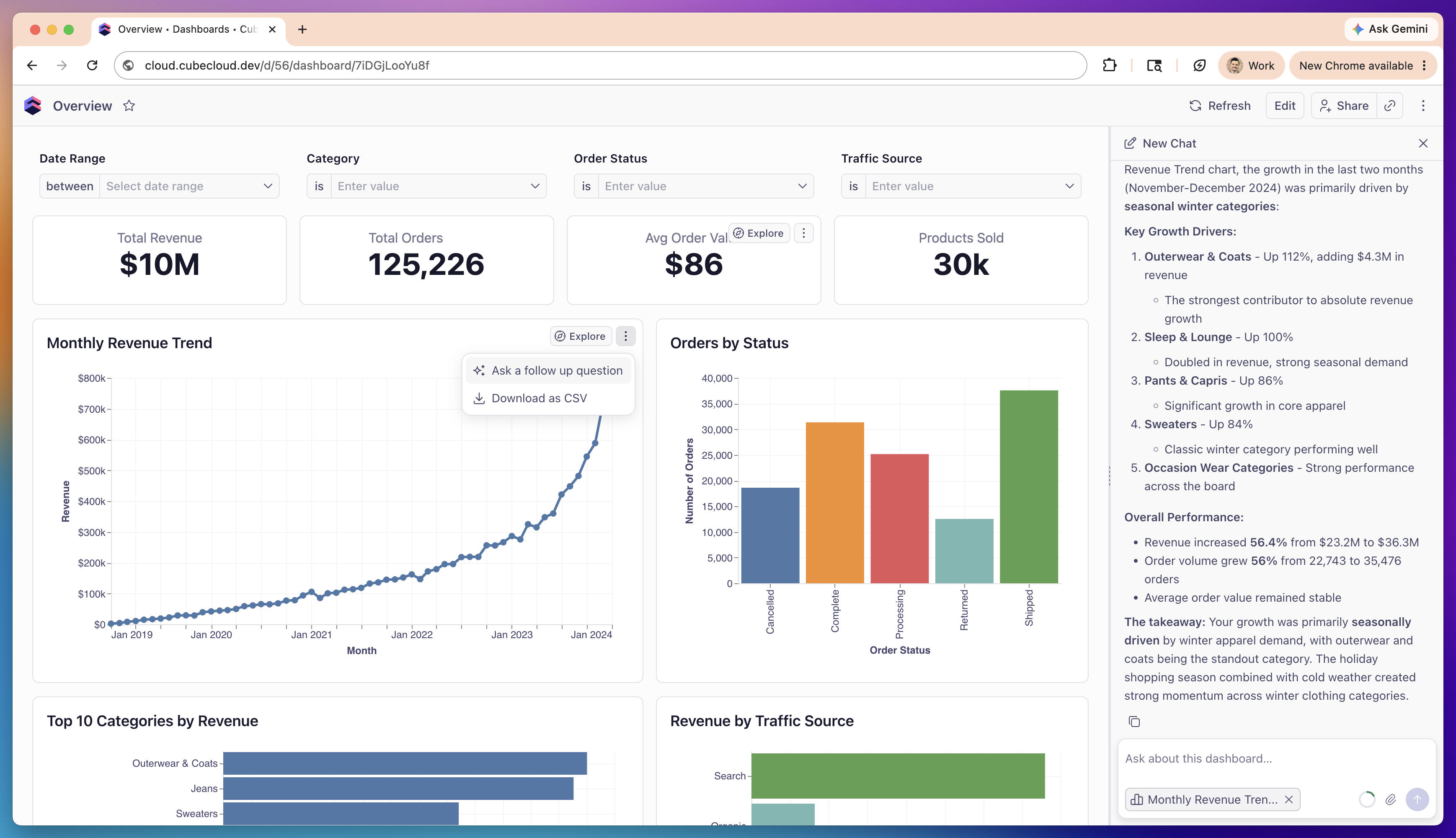
The Dashboard Agent is a conversational assistant docked as a panel on a
[published or embedded dashboard][ref-dashboards]. Ask it questions in plain
language about what's on the dashboard — and it answers using **live queries
against your semantic model**, not just the numbers already rendered on screen.
Because it queries the model directly, the agent can go beyond what a chart
shows. It can drill into a single chart, re-aggregate a metric, break a number
down by a dimension, pull a longer time range than the chart displays, and
summarize trends across the dashboard.
It can also **apply filters and change the time granularity** on the dashboard
you're viewing — just ask in plain language (for example, *"filter to last 30
days"* or *"group by month"*). These changes affect only your own session and
are never saved to the dashboard — see
[Changing filters and time granularity](#changing-filters-and-time-granularity).
 There are **two different agent surfaces** with different capabilities:
* **Dashboard Agent** (this page) — for viewers of a published or embedded
dashboard: question-and-answer about what's on screen, plus changing your
own filters and time granularity.
* **[Workbook Agent][ref-workbook-agent]** — full authoring inside a
[workbook][ref-workbooks]: creating reports, building and editing
dashboards, and running analysis.
The published Dashboard Agent can adjust **your own view** — filters and time
granularity, for your session only — but intentionally cannot author or change
the **saved** dashboard.
## Opening the agent
Open a published dashboard and toggle the agent panel from the dashboard header
to start a conversation. Use **New Chat** to start a fresh thread.
The panel is docked to the right side of the dashboard and is **resizable** —
drag its edge to give the conversation more or less room. On narrow screens it
switches to a **compact mode** so it stays usable next to the dashboard.
## Focusing on a specific chart
Chart-level follow-ups and attached-chart chips are **rolling out**. If you
don't see the **Ask a follow up question** action on a chart's menu yet, it
hasn't reached your deployment.
To ask about one chart in particular, open that chart tile's menu (`⋮`) and
choose **Ask a follow up question**. This opens the agent with that chart
**attached as context**, so your question is scoped to that chart's data.
Attached charts appear as **removable chips** in the chat input. To drop a
chart's focus, remove its chip. You can attach more than one chart to ask about
them together.
When a chart is attached, the agent receives a read-only snapshot of it — the
underlying SQL, the data, and the chart spec — along with the dashboard's
**current filter and time-granularity state**. It uses this as context for
answering and never edits the chart's definition. You can still ask it to change
the dashboard's filters or time granularity — see
[Changing filters and time granularity](#changing-filters-and-time-granularity).
## Changing filters and time granularity
Ask the agent, in plain language, to filter the dashboard or change a time
granularity, and it applies the change to the controls in front of you:
* *"Filter this dashboard to orders with status completed."*
* *"Show only the Outerwear category."*
* *"Filter to the last 30 days."*
* *"Group by month."*
* *"Reset the filters."*
How it works and what to expect:
* **Only controls that exist on the dashboard can be changed.** The agent can
change a filter or time granularity only when the dashboard has a matching
[filter or time-granularity control widget][ref-controls] for that dimension.
If there's no control for what you asked about, the agent tells you so instead
of changing anything. A control whose [visibility][ref-control-visibility] is
**Disabled** also can't be changed.
* **Time granularity stays within the control's allowed granularities.** If a
time-granularity control restricts which granularities viewers can pick, the
agent only chooses from that set.
* **Changes apply to your session only.** They're applied the same way as
changing a control by hand: reflected in the dashboard's URL — so you can
share or bookmark the filtered view — but **not** saved to the dashboard. They
don't affect what other viewers see, and the author's saved defaults are left
untouched.
This works the same way on both published dashboards and
[embedded][ref-embedding] dashboards.
## Attachments
You can attach uploaded files to the conversation, and the agent can read their
contents — text, PDF, ZIP, and image files are supported.
Pasting an image directly from your clipboard into the chat may also be
supported. Confirm this in your deployment before relying on it.
## Editing without edit access to this dashboard
If you have the Explorer role or higher but don't have edit access to this
specific dashboard's workbook, asking the agent to change something doesn't
just explain the limitation. Instead, the agent duplicates the dashboard into
a new workbook that you own, applies your requested change to that copy, and
hands you off to the new dashboard — the original is never touched. If you do
have edit access to the dashboard's workbook, the agent edits it in place
instead.
## What the Dashboard Agent can and can't do
The published Dashboard Agent can answer questions and adjust your own view,
but it never changes the **saved** dashboard — unless it duplicates it for you
first, as described in
[Editing without edit access to this dashboard](#editing-without-edit-access-to-this-dashboard)
above.
**It can:**
* Answer questions about what's on the dashboard from the dashboard's own data
* Run **read-only queries** against the semantic model to go deeper — drill
down, break a metric down by a dimension, or pull a longer time range than a
chart shows
* Apply filters and change the time granularity on the dashboard you're
viewing, for dimensions that have a matching
[control widget][ref-controls] (your session only — see
[Changing filters and time granularity](#changing-filters-and-time-granularity))
* Explain how a metric or dimension is defined
* Look up the values available for a dimension
* Read the contents of [attachments](#attachments) you add to the chat
**It can't:**
* Save its filter or time-granularity changes to the dashboard — they apply to
your session only and never change what other viewers see
* Edit this dashboard directly, or add/remove its widgets — if you have the
Explorer role or higher, it duplicates the dashboard into a new workbook
and edits the copy instead, or edits in place if you have edit access to
the dashboard's workbook; see
[Editing without edit access to this dashboard](#editing-without-edit-access-to-this-dashboard)
* Create reports or workbooks
* Change the data model
If you need any of those and don't have the Explorer role or higher, use the
[Workbook Agent][ref-workbook-agent] instead.
## Limitations
* **Filter and time-granularity changes need a matching control.** The agent can
change a filter or time granularity only for dimensions that have a
corresponding [control widget][ref-controls] on the dashboard, and the change
applies to your session only — it is never saved to the dashboard. If you ask
it to change something with no control on the dashboard, it explains the
current state instead of applying a change.
* **No authoring on published dashboards for viewers without the Explorer
role.** The published Dashboard Agent cannot create reports or build
dashboards, edit the saved dashboard, or change the data model. Those live
in the [Workbook Agent][ref-workbook-agent]. Explorer-role-and-above viewers
get a form of authoring too — see
[Editing without edit access to this dashboard](#editing-without-edit-access-to-this-dashboard).
* **Report search covers published reports only.** When the agent searches for
existing reports, it sees published reports.
[ref-dashboards]: /docs/explore-analyze/dashboards
[ref-workbooks]: /docs/explore-analyze/workbooks
[ref-workbook-agent]: /docs/explore-analyze/workbooks/workbook-agent
[ref-controls]: /docs/explore-analyze/dashboards/widgets/controls
[ref-control-visibility]: /docs/explore-analyze/dashboards/widgets/controls#visibility
[ref-embedding]: /embedding/iframe/dashboards
There are **two different agent surfaces** with different capabilities:
* **Dashboard Agent** (this page) — for viewers of a published or embedded
dashboard: question-and-answer about what's on screen, plus changing your
own filters and time granularity.
* **[Workbook Agent][ref-workbook-agent]** — full authoring inside a
[workbook][ref-workbooks]: creating reports, building and editing
dashboards, and running analysis.
The published Dashboard Agent can adjust **your own view** — filters and time
granularity, for your session only — but intentionally cannot author or change
the **saved** dashboard.
## Opening the agent
Open a published dashboard and toggle the agent panel from the dashboard header
to start a conversation. Use **New Chat** to start a fresh thread.
The panel is docked to the right side of the dashboard and is **resizable** —
drag its edge to give the conversation more or less room. On narrow screens it
switches to a **compact mode** so it stays usable next to the dashboard.
## Focusing on a specific chart
Chart-level follow-ups and attached-chart chips are **rolling out**. If you
don't see the **Ask a follow up question** action on a chart's menu yet, it
hasn't reached your deployment.
To ask about one chart in particular, open that chart tile's menu (`⋮`) and
choose **Ask a follow up question**. This opens the agent with that chart
**attached as context**, so your question is scoped to that chart's data.
Attached charts appear as **removable chips** in the chat input. To drop a
chart's focus, remove its chip. You can attach more than one chart to ask about
them together.
When a chart is attached, the agent receives a read-only snapshot of it — the
underlying SQL, the data, and the chart spec — along with the dashboard's
**current filter and time-granularity state**. It uses this as context for
answering and never edits the chart's definition. You can still ask it to change
the dashboard's filters or time granularity — see
[Changing filters and time granularity](#changing-filters-and-time-granularity).
## Changing filters and time granularity
Ask the agent, in plain language, to filter the dashboard or change a time
granularity, and it applies the change to the controls in front of you:
* *"Filter this dashboard to orders with status completed."*
* *"Show only the Outerwear category."*
* *"Filter to the last 30 days."*
* *"Group by month."*
* *"Reset the filters."*
How it works and what to expect:
* **Only controls that exist on the dashboard can be changed.** The agent can
change a filter or time granularity only when the dashboard has a matching
[filter or time-granularity control widget][ref-controls] for that dimension.
If there's no control for what you asked about, the agent tells you so instead
of changing anything. A control whose [visibility][ref-control-visibility] is
**Disabled** also can't be changed.
* **Time granularity stays within the control's allowed granularities.** If a
time-granularity control restricts which granularities viewers can pick, the
agent only chooses from that set.
* **Changes apply to your session only.** They're applied the same way as
changing a control by hand: reflected in the dashboard's URL — so you can
share or bookmark the filtered view — but **not** saved to the dashboard. They
don't affect what other viewers see, and the author's saved defaults are left
untouched.
This works the same way on both published dashboards and
[embedded][ref-embedding] dashboards.
## Attachments
You can attach uploaded files to the conversation, and the agent can read their
contents — text, PDF, ZIP, and image files are supported.
Pasting an image directly from your clipboard into the chat may also be
supported. Confirm this in your deployment before relying on it.
## Editing without edit access to this dashboard
If you have the Explorer role or higher but don't have edit access to this
specific dashboard's workbook, asking the agent to change something doesn't
just explain the limitation. Instead, the agent duplicates the dashboard into
a new workbook that you own, applies your requested change to that copy, and
hands you off to the new dashboard — the original is never touched. If you do
have edit access to the dashboard's workbook, the agent edits it in place
instead.
## What the Dashboard Agent can and can't do
The published Dashboard Agent can answer questions and adjust your own view,
but it never changes the **saved** dashboard — unless it duplicates it for you
first, as described in
[Editing without edit access to this dashboard](#editing-without-edit-access-to-this-dashboard)
above.
**It can:**
* Answer questions about what's on the dashboard from the dashboard's own data
* Run **read-only queries** against the semantic model to go deeper — drill
down, break a metric down by a dimension, or pull a longer time range than a
chart shows
* Apply filters and change the time granularity on the dashboard you're
viewing, for dimensions that have a matching
[control widget][ref-controls] (your session only — see
[Changing filters and time granularity](#changing-filters-and-time-granularity))
* Explain how a metric or dimension is defined
* Look up the values available for a dimension
* Read the contents of [attachments](#attachments) you add to the chat
**It can't:**
* Save its filter or time-granularity changes to the dashboard — they apply to
your session only and never change what other viewers see
* Edit this dashboard directly, or add/remove its widgets — if you have the
Explorer role or higher, it duplicates the dashboard into a new workbook
and edits the copy instead, or edits in place if you have edit access to
the dashboard's workbook; see
[Editing without edit access to this dashboard](#editing-without-edit-access-to-this-dashboard)
* Create reports or workbooks
* Change the data model
If you need any of those and don't have the Explorer role or higher, use the
[Workbook Agent][ref-workbook-agent] instead.
## Limitations
* **Filter and time-granularity changes need a matching control.** The agent can
change a filter or time granularity only for dimensions that have a
corresponding [control widget][ref-controls] on the dashboard, and the change
applies to your session only — it is never saved to the dashboard. If you ask
it to change something with no control on the dashboard, it explains the
current state instead of applying a change.
* **No authoring on published dashboards for viewers without the Explorer
role.** The published Dashboard Agent cannot create reports or build
dashboards, edit the saved dashboard, or change the data model. Those live
in the [Workbook Agent][ref-workbook-agent]. Explorer-role-and-above viewers
get a form of authoring too — see
[Editing without edit access to this dashboard](#editing-without-edit-access-to-this-dashboard).
* **Report search covers published reports only.** When the agent searches for
existing reports, it sees published reports.
[ref-dashboards]: /docs/explore-analyze/dashboards
[ref-workbooks]: /docs/explore-analyze/workbooks
[ref-workbook-agent]: /docs/explore-analyze/workbooks/workbook-agent
[ref-controls]: /docs/explore-analyze/dashboards/widgets/controls
[ref-control-visibility]: /docs/explore-analyze/dashboards/widgets/controls#visibility
[ref-embedding]: /embedding/iframe/dashboards